How to Use rkhunter and chkrootkit Sensibly With Examples
Use rkhunter and chkrootkit sensibly: update, set a baseline, run scans, handle false positives and see why a clean result does not prove a clean system.
Rootkit scanners have a reputation for crying wolf and for giving false comfort, and both are deserved if you do not know what they check. They compare binaries with stored hashes, look for known malware files and directories, and test for suspicious settings. That is useful for catching crude and known compromises and useless against a careful attacker. This post sets up rkhunter and chkrootkit and says how to read the results. It is part of the set that includes AIDE and Lynis. The commands assume rkhunter 1.4.6 and chkrootkit 0.58 on Debian 13.
rkhunter
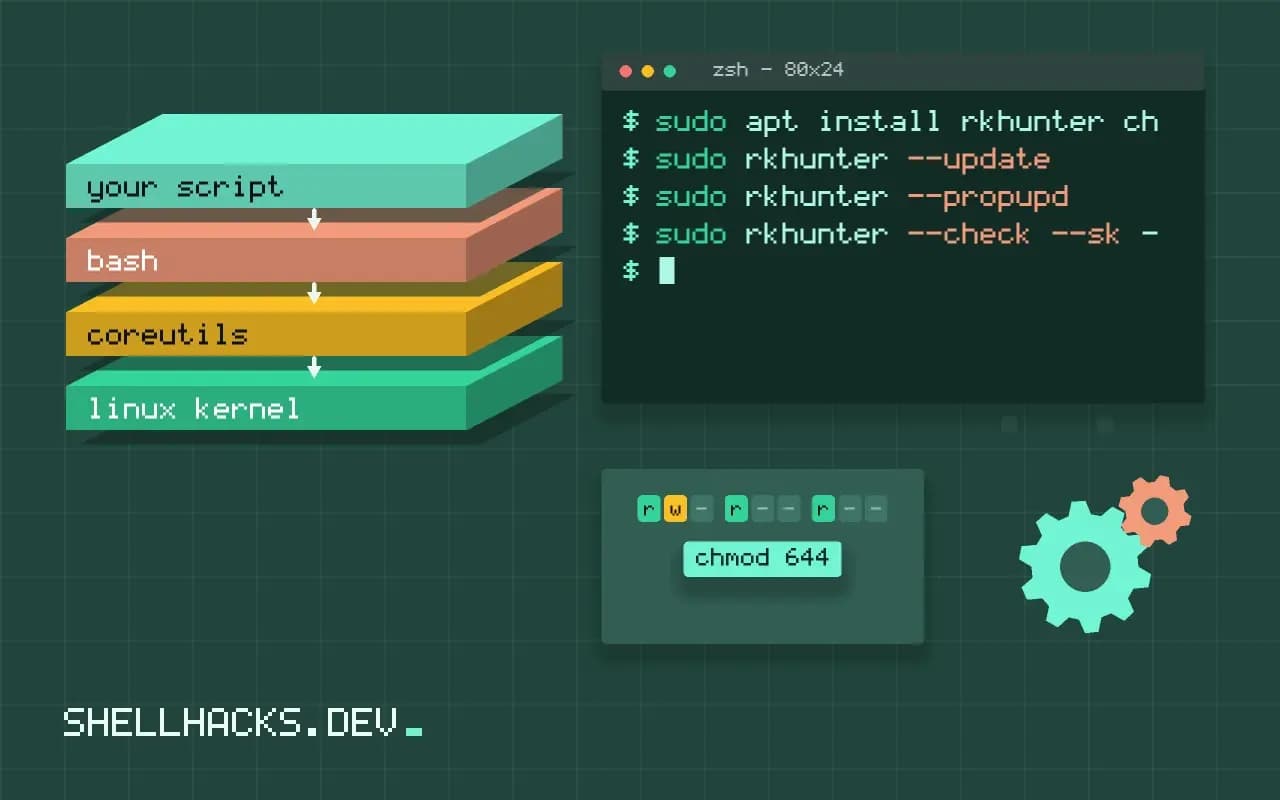
sudo apt install rkhunter chkrootkit
sudo rkhunter --update
sudo rkhunter --propupd
sudo rkhunter --check --sk --report-warnings-onlyWarning: The command '/usr/bin/lwp-request' has been replaced by a script: /usr/bin/lwp-request: Perl script text executable
Warning: Hidden directory found: '/etc/.java'
--update refreshes the signature and mirror data. --propupd records the current file properties (hashes, permissions) of system binaries as the baseline; run it on a trusted system, because it stores whatever is there now as normal. --check --sk runs without waiting for keypresses. The log with the details is /var/log/rkhunter.log.
False positives, handled
Both warnings above are common and harmless: lwp-request is a Perl script shipped by a package, and /etc/.java is created by Java. Rather than ignore the output, tell rkhunter what you have verified:
PKGMGR=DPKG
SCRIPTWHITELIST=/usr/bin/lwp-request
ALLOWHIDDENDIR=/etc/.java
ALLOW_SSH_ROOT_USER=no
PKGMGR=DPKG makes rkhunter check file hashes against the package database, which removes most false warnings after upgrades. Add exceptions only for items you have investigated, and keep the file in version control. Package upgrades change binaries and trigger warnings until the baseline is refreshed: the Debian package hooks run --propupd automatically after an apt run when configured to.
chkrootkit
sudo chkrootkit -q-q prints only suspicious results. chkrootkit runs checks for known rootkit files and for signs such as network interfaces in promiscuous mode or deleted log lines. Typical false positives are a PACKET SNIFFER message when a DHCP client or a virtual interface is present, and Searching for suspect PHP files noise. Check the finding against the process listing and the package before concluding anything.
Schedule
The Debian packages install a daily cron job and mail root with the output. Make sure mail reaches a person, or send the report to your alert channel, as in basic alerting. A report that nobody reads gives only the illusion of monitoring.
What a clean result means
Very little. Scanners match known signatures, so a new or custom tool is invisible. A rootkit that runs with kernel privileges can hide files, processes and the scanner's own findings, because the scanner uses the same system calls it has corrupted. If you suspect a compromise, do not rely on a scan of the live system: capture evidence, then examine the disk from a separate, trusted system, and follow compromised server response. Prevention matters more: hardened SSH, updates and least privilege.
Where this does not apply
Containers and short-lived hosts are replaced instead of scanned. On heavily customized systems, the volume of exceptions can make the tools noisy enough to ignore. Choose one or two checks you will read, and tune them, instead of adding every tool.
How the scanners decide something is wrong
Rkhunter and chkrootkit look for known signs of compromise. They compare file hashes of important binaries against a stored record or a package database, search for files and directories that known rootkits create, check for suspicious ports and hidden processes, and look at settings that attackers often change. They work from signatures, which means they find what they have been taught to look for and miss new or custom malware. A rootkit that runs with kernel privileges can also hide from any tool that runs on the same machine, since the tool asks the compromised system for its answers. A clean report is therefore weak evidence. A warning is worth investigating, and a pile of warnings after an upgrade is usually noise. These tools are best seen as tripwires and not as proof of safety: cheap to run and good at catching crude, well-known problems.
They also overlap with file integrity monitoring, and a tool like AIDE gives stronger guarantees about changes to files, while these scanners add checks for hidden things that file monitoring cannot see.
Dealing with false positives properly
Expect warnings the first time, and decide each one on evidence. Typical causes are a changed system binary after an update, because the stored properties are old, a script that replaced a binary on some distributions, and hidden directories that software creates. After a verified upgrade, refresh the stored properties with rkhunter --propupd, ideally from the package manager's hook, which most packages install. For a warning that persists, check the file against the package with the package manager's verify command, dpkg --verify or rpm -V, and look at the file's origin. Add exceptions to the configuration in narrow terms: allow a particular script or a particular hidden directory by path, with a comment, and not whole categories. Never silence a warning just to get a clean report, since a quiet scanner that you have taught to ignore everything protects nothing. Keep the configuration under version control and review the exceptions from time to time.
Scheduling and what to do with a real hit
Run a scan daily from a timer, with output mailed or logged to a central place, and set it to print only warnings. Update the signature data first, since the tools depend on it. If a scan reports something you cannot explain, do not clean up in place. Isolate the machine from the network if you can, preserve evidence by copying logs and, if practical, a disk image, check the file hashes against a trusted source, and compare with another machine of the same role. The reliable response to a confirmed compromise is to rebuild from a known-good image and restore data after inspecting it, and to rotate every credential that was on the machine, since you cannot prove what the intruder did. Use the follow-up guide on responding to a compromised server for the steps. Do not rely on these scanners to tell you that a system is clean, and do not treat their silence as assurance.
Using them alongside other controls
These scanners are one thin layer. Combine them with file integrity checks, audit rules, centralized logs and timely updates, because each catches what the others miss. Keep the machine patched, restrict what runs on it, watch outbound connections, and keep a recent, tested way to rebuild it. A server you can rebuild in half an hour from code and a backup is far less frightening to find a warning on, since the worst case is a replacement and not an agonizing investigation. Run the scans for the information they give, and spend your effort on the controls that stop intruders from getting in at all.
See the rkhunter project and chkrootkit.