How to Use SSH on Windows With OpenSSH and WSL the Safe Way
Use SSH on Windows with the built-in OpenSSH client, the agent service, key permissions, WSL with its separate keys, and the optional server.
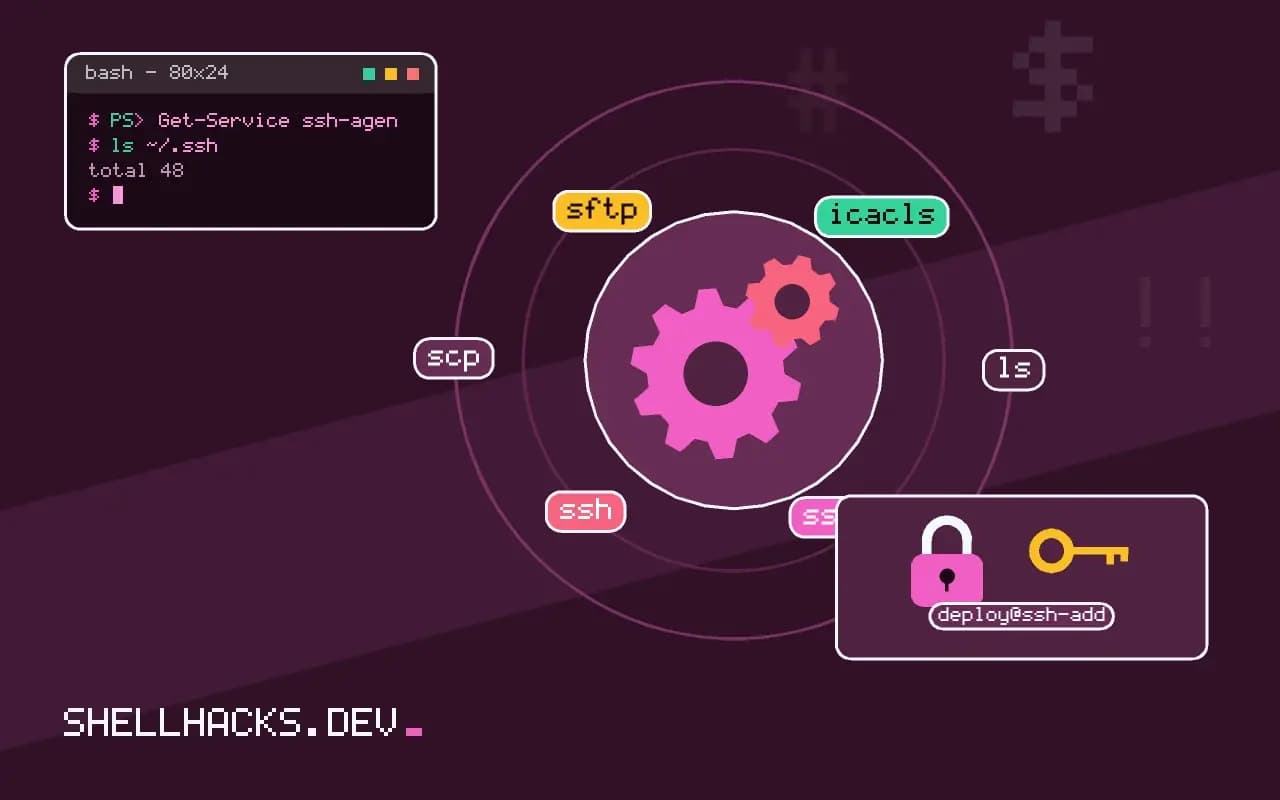
SSH on Windows used to mean installing PuTTY. Windows 10 and 11 now ship the same OpenSSH client as Linux, and WSL runs the Linux one, so the commands in every guide apply. The new problems are where keys live, which agent holds them and how permissions are enforced. This post covers the three setups, as a Windows chapter of the SSH guide. The commands assume Windows 11 24H2 with OpenSSH for Windows 9.5 and WSL 2 with Ubuntu 24.04.
The built-in client
PS> ssh -V
OpenSSH_for_Windows_9.5p1, LibreSSL 3.8.2
PS> ssh-keygen -t ed25519 -C "ada@windows"
PS> Get-ChildItem $env:USERPROFILE\.ssh
If ssh is not found, open Settings, Optional features, and add "OpenSSH Client", or from an administrator PowerShell run Add-WindowsCapability -Online -Name OpenSSH.Client~~~~0.0.1.0. Keys go in C:\Users\NAME\.ssh, and the config file in the same folder works as on Linux; see the SSH config file. Paths in IdentityFile use forward slashes and may start with ~.
The agent service
PS> Get-Service ssh-agent | Select Status, StartType
PS> Set-Service ssh-agent -StartupType Automatic    # administrator
PS> Start-Service ssh-agent
PS> ssh-add $env:USERPROFILE\.ssh\id_ed25519
PS> ssh-add -l
The agent is disabled by default. Once running, it remembers keys across reboots, protected by your Windows account, which is why a passphrase on the key still makes sense. Without the agent you type the passphrase for every connection.
Permission errors
@@@@@@@@@@@@@@@@@@@@@@@@@@@@@@@@@@@@@@@@@@@@@@@@@@@@@@@@@@@
@         WARNING: UNPROTECTED PRIVATE KEY FILE!          @
@@@@@@@@@@@@@@@@@@@@@@@@@@@@@@@@@@@@@@@@@@@@@@@@@@@@@@@@@@@
Permissions for 'id_ed25519' are too open.
ssh refuses a private key that other users can read. On Windows, fix the ACL: icacls $env:USERPROFILE\.ssh\id_ed25519 /inheritance:r /grant:r "$($env:USERNAME):(R)" removes inherited permissions and grants only you read access. Keys copied from another system or from a synced folder often arrive with inherited permissions. In WSL, use chmod 600 ~/.ssh/id_ed25519; but note that files under /mnt/c do not honor Unix permissions by default, so keep WSL keys inside the Linux filesystem.
WSL is a separate machine
ls ~/.ssh
ssh-add -l
Inside WSL, ~/.ssh is the Linux home directory, different from the Windows one, and the Windows agent is not visible. Options: generate separate keys for WSL, which is the clean choice; copy the key into the WSL filesystem and fix permissions; or run ssh.exe from WSL to reuse the Windows client and agent, which works for simple cases and not for tools that need a Unix socket. Bridging the Windows agent to WSL needs a helper and adds a moving part. Many people keep one key per environment, each with its own passphrase.
Running an SSH server on Windows
PS> Add-WindowsCapability -Online -Name OpenSSH.Server~~~~0.0.1.0
PS> Set-Service sshd -StartupType Automatic
PS> Start-Service sshd
Administrator accounts read their public keys from C:\ProgramData\ssh\administrators_authorized_keys, with strict permissions, not from the user's folder, a frequent surprise. The default shell is cmd.exe; set PowerShell with the DefaultShell registry value under HKLM:\SOFTWARE\OpenSSH. Apply the same hardening as on Linux: no password login, as in hardening sshd.
Where this does not apply
Corporate machines may restrict optional features or the agent service. For graphical sessions and file transfer, scp and sftp from the same client work as on Linux. PuTTY remains an option, with its own key format and agent; puttygen converts keys.
What Windows provides out of the box
Current versions of Windows 10 and 11 include the OpenSSH client as an optional feature that is usually installed already, and ssh, scp, sftp and ssh-keygen run from PowerShell and the command prompt. Configuration lives in the profile folder, in .ssh under the user directory, with the same file names as on Linux: config, known_hosts and the key files. Paths in the configuration use forward slashes and may refer to the home directory with a tilde. Because Windows has a different permission model, the client checks file access in its own way, and a private key that other users can read produces the same "unprotected private key file" error as on Linux. The fix is to remove inherited permissions and grant only your account read access, with icacls. Check that the key file is not stored in a synced folder that other accounts or services can reach.
The client behaves like the Linux one in most ways, which makes documentation and scripts portable, apart from the shell that quotes arguments, so a command that works in Bash may need different quoting in PowerShell.
The agent and its startup type
Windows includes an SSH agent as a service named ssh-agent, and it is disabled by default. Without it running, each connection asks for the key passphrase, and ssh-add reports that it cannot connect to the agent. Set the service to start automatically and start it from an administrator PowerShell, then add keys with ssh-add, and the keys persist across logins in the agent's store, protected by your Windows account. This is convenient and means anyone who can run code as you can use the keys, so keep a passphrase on the key and consider a hardware key for sensitive hosts. Agent forwarding to a remote machine lets that machine use your keys while you are connected, which is a risk if the remote host is untrusted, so use jump hosts through ProxyJump instead of forwarding when you can.
WSL and running the server
The Windows Subsystem for Linux is a separate environment with its own home directory, keys and known hosts, and it does not share them with the Windows client unless you set that up. Generating a key in one and trying to use it from the other is a frequent confusion. You can point the Linux side at the Windows files through the mounted drive, though permissions on that mount often make the key appear too open, so many people keep separate keys per environment, each with its own passphrase and its own entry on the servers. Running an SSH server on Windows is possible, by installing the OpenSSH server feature and starting the sshd service. For accounts in the administrators group, the public keys go in a shared file under ProgramData and not in the user's folder, and that file needs strict permissions too. Treat an exposed Windows SSH server as you would a Linux one: keys only, a firewall rule and updates.
Common failures on Windows
A few errors appear again and again. "Bad permissions" on the key means the access list is too broad, and the fix is with icacls. "Could not open a connection to your authentication agent" means the agent service is stopped, so start it and set it to automatic. A key that works in the Linux subsystem and not in Windows, or the reverse, lives in the other environment's home. A config file saved by a Windows editor with a byte order mark can cause odd parse errors, so save it as plain UTF-8 without one. A path with spaces in an IdentityFile needs quotes. Check each in turn, using ssh -v to see which files and methods are tried.
See Microsoft's OpenSSH install guide and OpenSSH key management.