How to Use chmod in Numeric and Symbolic Modes Step by Step
Use the chmod command in numeric and symbolic modes, read octal permissions, set execute bits only where needed, and avoid the recursive mistakes.
Permission bits decide who can read, write or run a file, and chmod is the command that sets them. It has two notations that describe the same thing, and mixing up which to use is behind most "permission denied on a script" questions. The examples assume GNU coreutils 9.4 on Linux; the underlying permission model is in Linux file permissions.
Read a mode
ls -l deploy.sh-rwxr-xr-- 1 alice dev 412 Nov 3 09:14 deploy.sh
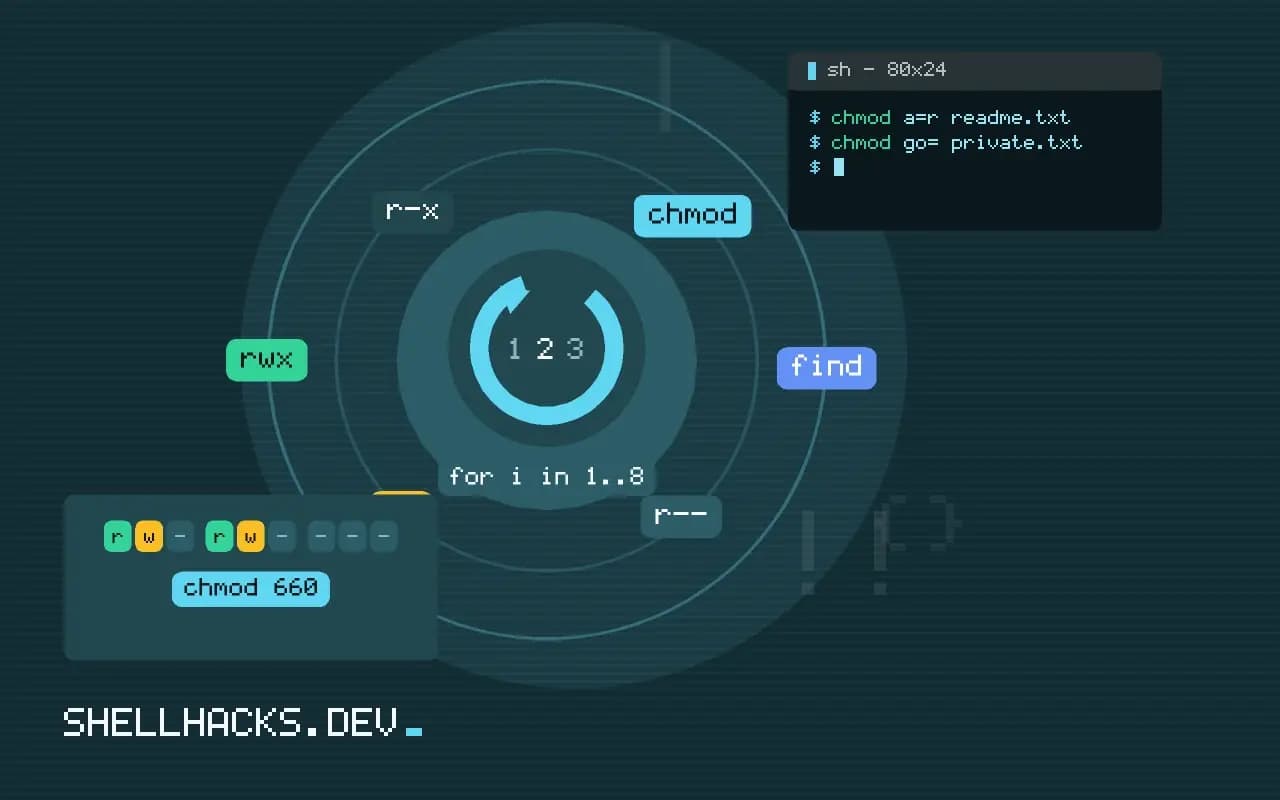
After the file type character, the nine characters are three groups: owner rwx, group r-x, others r--. Each group is a number made by adding read 4, write 2 and execute 1, so this mode is 7, 5 and 4, written 754.
Numeric mode
chmod 755 deploy.sh     # rwxr-xr-x  scripts and programs
chmod 644 notes.txt     # rw-r--r--   ordinary files
chmod 600 id_ed25519    # rw-------   private keys
chmod 700 ~/private     # rwx------   private directory
Numeric mode replaces every permission bit in one go, which is exact and short. It is also blunt: chmod 644 on a file that had special bits such as setuid clears them, a point covered in setuid, setgid and the sticky bit.
Symbolic mode
chmod u+x script.sh        # add execute for the owner
chmod g-w,o-rwx secrets    # remove group write, remove all access for others
chmod a=r readme.txt       # everyone read only
chmod go= private.txt      # remove all group and other permissions
The letters are who (u owner, g group, o others, a all), an operator (+, -, =) and the permissions. Symbolic mode touches only what you name, so it is the safer choice when you do not know the current mode.
Recursive changes without making everything executable
chmod -R u=rwX,go=rX project/The capital X sets execute only on directories and on files that already have execute for someone. A plain chmod -R 755 project/ makes every data file executable, which is wrong and noisy. When files and directories need different modes, use find:
find project -type d -exec chmod 755 {} +
find project -type f -exec chmod 644 {} +
Directories behave differently
On a directory, read lets you list names, write lets you create and remove entries, and execute (also called search) lets you reach files inside by name. A directory with r-- and no x lists names but fails with "Permission denied" on every file, which surprises people. Removing a file depends on write permission on the directory, not on the file, which is why the sticky bit exists on /tmp.
The three special bits
Beyond the nine permission bits, a mode has three special ones that sit in a fourth, leading octal digit. The setuid bit (4) on an executable makes it run with the owner's identity instead of the caller's, which is how passwd can edit a file the caller cannot write. The setgid bit (2) on an executable does the same with the group, and on a directory it makes new files inherit the directory's group, the behaviour that shared project folders rely on. The sticky bit (1) on a directory restricts deletion: only the owner of a file, or of the directory, can remove or rename it, which is why /tmp is mode 1777 and users cannot delete each other's files there.
In ls -l output they replace the execute character: an s in the owner or group position, a t in the others position, and a capital letter when the underlying execute bit is not set. A capital S or T is almost always a mistake worth fixing. Setting them symbolically is clearer than numerically: chmod g+s dir and chmod +t dir say what is intended, while chmod 2775 dir requires remembering the leading digit. Auditing for risky ones is a single command: find / -xdev -perm -4000 -type f lists setuid files, and any that is not a known system program deserves an explanation.
How the kernel checks access
The kernel picks one class, not the most generous. If the caller owns the file, only the owner bits apply, even if the group bits would allow more. Otherwise, if the caller is in the file's group, the group bits apply. Otherwise the others bits apply. A file with mode 047 therefore denies its owner access that everyone else has. That ordering rarely matters in practice, and when it does, it explains the puzzling case of an owner who cannot read a file that others can. Root bypasses read and write checks, and needs an execute bit somewhere to run a file as a program.
Directory traversal adds a requirement. To open /srv/app/data/file, the caller needs execute permission on every directory in the path, /, srv, app and data, not only on the last one. A tight mode on a parent directory silently blocks files that look open. namei -m /srv/app/data/file prints the mode of each component, and shows which one denies access.
Scripts, shebangs and mounts
A script needs the execute bit to run as ./script.sh, and it needs only read permission to run as bash script.sh. If a file has the bit but the error is still "Permission denied", look for a noexec mount option on the filesystem, which blocks execution regardless of mode; findmnt -T script.sh shows the options. Temporary directories are often mounted that way as a hardening measure. A bad interpreter path in the shebang gives a different message, "bad interpreter", which is easy to confuse with a permission problem.
Changing modes in version control
Git records only one permission distinction for a file, the executable bit, as mode 100755 against 100644. It does not store group or other bits, so a checkout applies the umask. Set the bit in the repository with git update-index --chmod=+x script.sh, which is useful on filesystems that do not keep modes, and review mode changes in diffs, where they appear as "old mode, new mode" lines. A recursive chmod across a working tree produces a diff touching every file when core.fileMode is on, so check the setting before running it.
Common mistakes and their fixes
Three mistakes account for most permission problems. Setting 777 to make an error go away hides the cause, exposes the file to every local user, and on some services, such as SSH and sudo, makes the tool refuse to work at all, because it checks that its files are not writable by others. Setting 644 on a directory removes the execute bit and makes it impossible to enter. And running a recursive change from the wrong directory, especially with a variable that turned out empty, as in chmod -R 755 "$dir/" when $dir is unset, applies it to the root of the filesystem. Guard with ${dir:?} and run the command with -c or -v first on a copy to see what changes.
Where this does not apply
Mode bits are only one layer. Access control lists can grant more than the mode shows, in which case a + appears after the mode in ls -l; see ACLs with setfacl. On filesystems without Unix permissions, such as FAT, NTFS mounts and many network shares, chmod either does nothing or is faked by mount options. If a change fails, the error is usually ownership rather than mode, discussed in operation not permitted. The GNU coreutils chmod manual and the POSIX chmod specification define every symbolic form.