How to Debug DNS and TLS Problems From the Terminal
Debug DNS and TLS problems from the terminal: dig, getent and resolvectl for names, openssl s_client and curl -v for handshakes, with a layered approach.
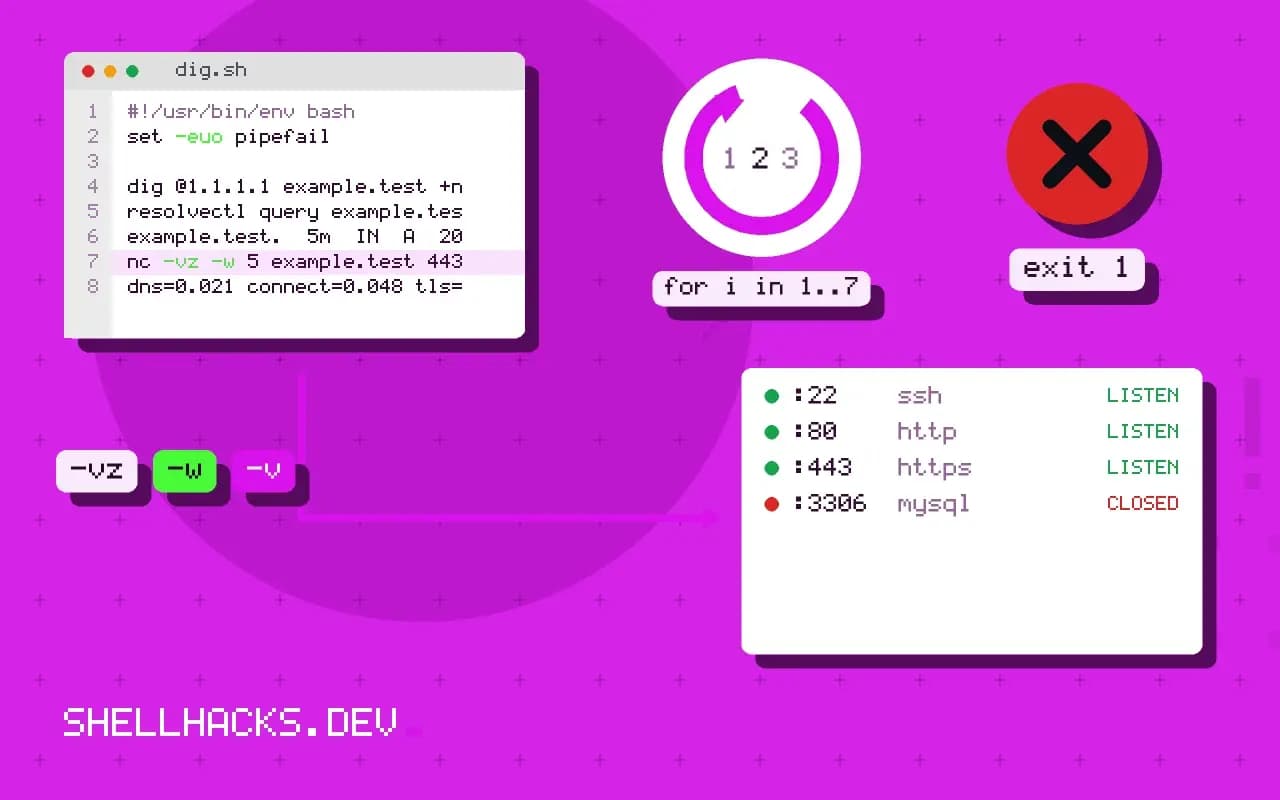
"The site is down" can be four different failures: the name does not resolve, the port is unreachable, the TLS handshake fails or the application errors. Testing each layer in turn, and no further than the first failure, is faster than guessing. These commands live in the terminal of any server or laptop and form the basis of network debugging. The examples assume dig 9.20, OpenSSL 3.0 and curl 8.
Layer 1: DNS
getent hosts example.test
dig +short A example.test
dig example.test AAAA +noall +answer
dig @1.1.1.1 example.test +noall +answer +ttlunits
resolvectl query example.test203.0.113.10 example.test
203.0.113.10
example.test. 5m IN A 203.0.113.10
getent hosts asks the C library, applying /etc/hosts and nsswitch.conf exactly like your programs; dig queries a DNS server directly and ignores the hosts file. If dig works and getent does not, the problem is local configuration. If the answer differs between resolvers, suspect caching or a recent change (the TTL tells how long a stale answer may live). AAAA records matter: a bad IPv6 record can make clients hang before falling back. To find where delegation breaks, use dig +trace example.test.
Layer 2: can you reach the port?
nc -vz -w 5 example.test 443
curl -sS -o /dev/null -w 'dns=%{time_namelookup} connect=%{time_connect} tls=%{time_appconnect} total=%{time_total}\n' https://example.test/Connection to example.test (203.0.113.10) 443 port [tcp/https] succeeded!
dns=0.021 connect=0.048 tls=0.141 total=0.205
The timing fields of curl point at the slow or failing stage: a large dns value is the resolver, a large gap between connect and tls is the handshake. Firewalls show as timeouts, as in timed out connections.
Layer 3: the TLS handshake
openssl s_client -connect example.test:443 -servername example.test -showcerts </dev/null 2>&1 | sed -n '1,/^---$/p;/Verif/p' | head -30
echo | openssl s_client -connect example.test:443 -servername example.test 2>/dev/null | openssl x509 -noout -subject -issuer -dates -ext subjectAltNamesubject=CN = example.test
issuer=C = US, O = Let's Encrypt, CN = R11
notBefore=Oct 4 09:00:00 2026 GMT
notAfter=Jan 2 09:00:00 2027 GMT
X509v3 Subject Alternative Name:
DNS:example.test, DNS:www.example.test
Verify return code: 0 (ok)
Without -servername, servers hosting several sites return a default certificate and you debug the wrong one. Check the names in the subject alternative name against the host you used, the dates, the issuer and the verification result. A Verify return code: 21 ("unable to verify the first certificate") usually means a missing intermediate certificate on the server. Code 10 is an expired certificate, and 18 or 19 is a self-signed certificate. A wrong system clock produces "not yet valid" errors that look like TLS faults.
Layer 4: the client's view
curl -v https://example.test/ 2>&1 | grep -E '^\*|^< HTTP'
curl -v --tlsv1.2 --tls-max 1.2 https://example.test/ -o /dev/null 2>&1 | grep -i -E 'ssl|tls|cipher'
curl --resolve example.test:443:198.51.100.5 -sSI https://example.test/
curl -v narrates the connection: address tried, protocol and cipher negotiated, certificate verification and HTTP response. --resolve forces a name to a specific IP, which tests a new server before DNS changes or compares the nodes behind a load balancer. If you get a protocol error, pin the version to find out which side refuses what. Never fix a verification error with -k except as a deliberate diagnostic, noting the point made in TLS certificates in scripts.
Start with the name and its answers
When a secure connection fails, the first question is whether the name resolves, and to what. Use dig +short name to see the addresses, and ask for the record types that matter: A and AAAA for addresses, CNAME for aliases, MX for mail. Compare the answer from your default resolver with one from a public resolver, dig @1.1.1.1 name, and from the authoritative servers listed by dig NS domain. A difference points at caching, a recent change that has not propagated or a split-horizon setup that gives internal and external answers. The record's time to live tells you how long a stale answer can persist. If the name resolves to an IPv6 address and your network has no IPv6 route, connections may hang before falling back to IPv4, which is a common cause of slow first requests.
Check the local resolver configuration too. The file /etc/resolv.conf, a systemd-resolved stub, VPN software and corporate DNS settings all change what the system asks, and resolvectl status shows the effective setup on systems that use it.
Reaching the port
With an address in hand, test whether the port accepts connections: nc -vz host 443 or curl -v --connect-timeout 5 https://host. A refusal means nothing listens or a firewall rejects the traffic, and a timeout means packets are dropped. Test from the machine that shows the problem, not from your laptop, since firewalls and routes differ. If you connect through a proxy, the environment variables for it change the path entirely; curl -v reports whether a proxy is used. Use --resolve host:443:address to send the request to a specific address while keeping the name for TLS and for the Host header, which separates DNS problems from server problems and lets you test a new server before the DNS change goes live.
Load balancers and CDNs often serve from many addresses. Test each one if the failure is intermittent, because one bad back end among several produces random errors.
Inspecting the TLS handshake
The handshake carries the certificate, and openssl s_client -connect host:443 -servername host shows it. The -servername option sends the name for SNI, without which a server hosting many sites may return a default certificate for another name. Look at the certificate chain, the validity dates, the subject alternative names and the verification result at the end. Common faults are an expired certificate, a name that is not in the certificate, a missing intermediate certificate that browsers fetch but strict clients do not, and a chain that ends in an authority the client does not trust. Pipe the certificate into openssl x509 -noout -dates -subject -issuer -ext subjectAltName for a readable summary. Check the protocol version and cipher negotiated, since a server that only offers old versions fails with modern clients.
Clock skew breaks certificate checks without any problem in the certificate. A machine whose clock is wrong by days sees valid certificates as expired or not yet valid.
What the client trusts
A certificate that works in a browser can fail in a script because each client has its own trust store. Command line tools use the operating system's bundle or their own, and a container image may have no certificate authorities installed at all, which produces verification errors for every site. Install the ca-certificates package in minimal images. Programs in languages with their own bundles, such as some Python and Java setups, need the right variable or setting to use a corporate root certificate when a proxy intercepts traffic. Compare what curl sees with what the failing program sees, and use curl --cacert to test a specific bundle. Never turn off verification as a fix; if you do it for a test, make sure the setting does not reach production. Write down the layer where you found the fault, the evidence and the fix, so the next occurrence takes minutes and the lesson reaches the monitoring, which should check name, port and certificate expiry regularly.
Where this does not apply
Corporate proxies that intercept TLS present their own certificate; the issuer will be the proxy's CA, and applications fail until the CA is trusted. Container DNS has its own resolver at 127.0.0.11, so test inside the container with docker exec. HTTP/3 uses UDP and needs curl --http3. See the BIND tools documentation for dig and the curl manual.