How to Schedule Tasks on Windows From WSL Without Surprises
Schedule tasks on Windows that run WSL commands: Task Scheduler with wsl.exe, systemd inside WSL, cron limits when the VM is stopped, paths and logging.
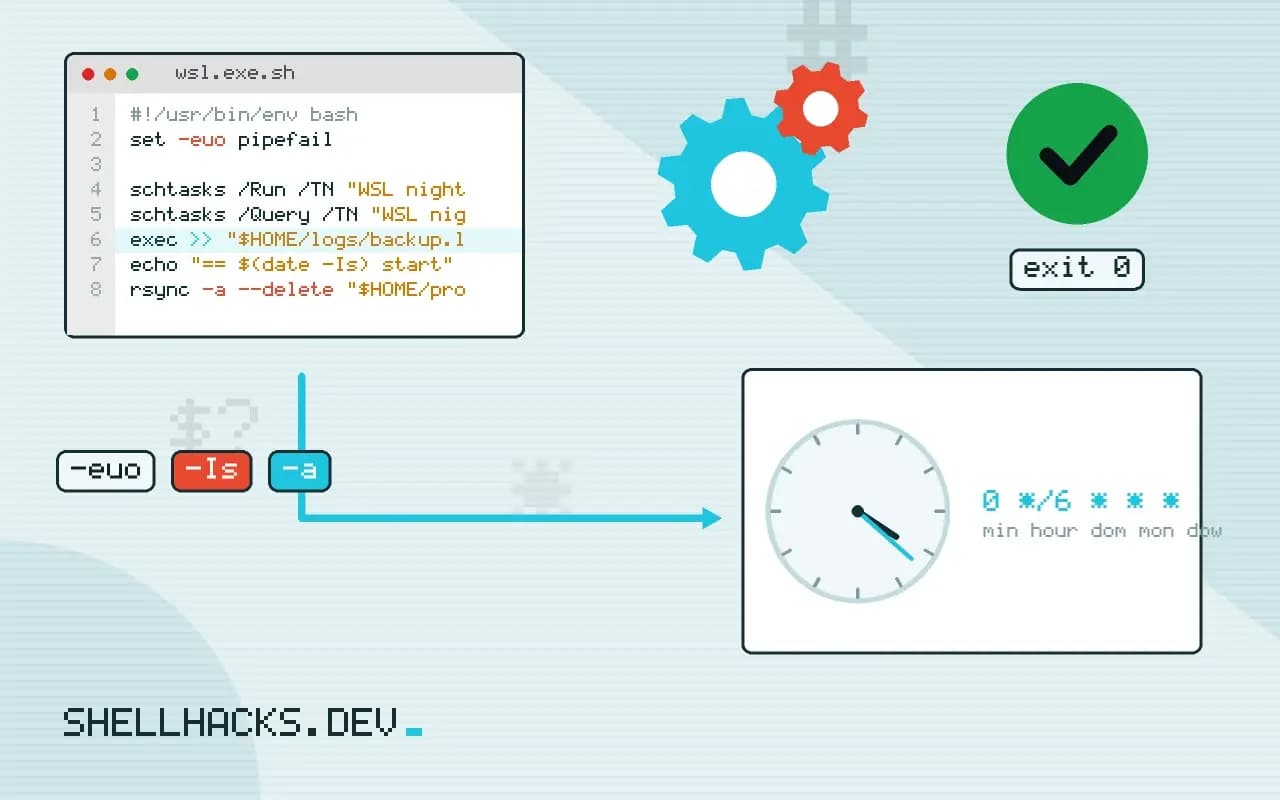
Windows Subsystem for Linux gives you a Linux shell, and people expect cron to work in it as on a server. It does until the machine idles and WSL shuts its VM down, after which nothing is running to fire the jobs. Reliable scheduling comes from the Windows side, which is always on. This post covers the approach, linking to the Linux side in cron basics and WSL and Windows Terminal. The steps assume Windows 11 with WSL 2 and Ubuntu 24.04.
Schedule from Windows
schtasks /Create /TN "WSL nightly backup" /SC DAILY /ST 02:30 /RL LIMITED ^
  /TR "wsl.exe -d Ubuntu -u alice -e /home/alice/bin/backup.sh"
schtasks /Run /TN "WSL nightly backup"
schtasks /Query /TN "WSL nightly backup" /V /FO LIST
Run these in a Windows terminal. Task Scheduler is always running, and wsl.exe starts the VM, runs the command and exits. -e executes the command directly without a shell, so give a script with a shebang and the executable bit. Use -u to choose the Linux user, and the distribution name from wsl -l -v. In the Task Scheduler window, tick "Run whether user is logged on or not" if it must run when you are away, which needs the account password.
A script that logs
#!/usr/bin/env bash
set -euo pipefail
exec >> "$HOME/logs/backup.log" 2>&1
echo "== $(date -Is) start"
rsync -a --delete "$HOME/projects/" /mnt/d/backups/projects/
echo "== $(date -Is) done"
The scheduled task shows no console, so a failure vanishes unless the script logs. The exec redirect sends everything to a file inside the Linux file system. Create the directory first with mkdir -p ~/logs. Keep the work on the Linux side where possible: accessing /mnt/c or /mnt/d is much slower, and file permissions behave differently there, as noted in unprotected private key files.
cron and systemd inside WSL
[boot]
systemd=true

[interop]
appendWindowsPath=falsesudo nano /etc/wsl.conf
# then, from Windows PowerShell:
wsl --shutdown
wsl -d Ubuntu -e systemctl list-timers --no-pagerWith systemd enabled (WSL 0.67.6 and later), services and timers work inside the distribution, and cron starts at boot. The catch is the lifetime: WSL stops the VM a few seconds after the last process ends unless something keeps it alive, so the timers do not fire while it is stopped. A scheduled Windows task that starts wsl.exe at logon with a long-running command keeps it up, though that is a workaround, not a design. Setting vmIdleTimeout in .wslconfig changes the idle shutdown on recent versions.
Paths, quoting and the environment
wsl.exe -d Ubuntu -e bash -lc "cd ~/app && ./run.sh >> ~/logs/run.log 2>&1"
wslpath -u 'C:\Users\alice\data'
When you need shell features, call bash -lc; the -l makes it a login shell so profile settings load, which matters for tools installed with version managers. Quoting passes through two parsers, Windows and Linux, so keep the command short and put logic in the script. wslpath converts between Windows and Linux paths. The environment is minimal here too, as discussed in scripts that work in the terminal but not in cron.
Why cron inside WSL surprises people
On a server, the system manager starts cron at boot and keeps it alive. WSL 2 runs a lightweight virtual machine on demand: it starts when you open a terminal or run a command, and it stops after a short idle period when no process is running. Cron is a process inside that machine, so when the machine stops, the scheduler stops with it, and no job runs. Nothing is wrong with the crontab; the host environment is not there at the scheduled time. This explains the confusing pattern where jobs run while a terminal is open and never otherwise.
The lifetime settings have changed between releases. Recent versions of WSL let you configure how long an idle VM stays up, and the defaults have been adjusted more than once. Do not rely on a specific timeout. Treat the VM as something that may be absent, and make Windows responsible for starting it when work is due.
Making the task reliable on the Windows side
Task Scheduler offers options that matter for a laptop. Allow the task to start if the computer is on battery power, otherwise a backup scheduled at night is skipped whenever the device is unplugged. Enable running the task as soon as possible after a missed start, so a laptop that was asleep at 02:30 catches up when it wakes. Set a time limit that is longer than the job's slowest run and a rule to stop the task if it runs beyond it, which prevents a hung script from holding the VM open forever. Choose whether the task needs the user to be logged in: tasks that run without a logged-in session need stored credentials and cannot interact with the desktop, which is correct for a backup.
Capture the exit code. Task Scheduler records a last-run result, and a nonzero value from wsl.exe reflects the status of the Linux command. Query it with schtasks /Query /V or from PowerShell and alert on failures. Combined with the log file written on the Linux side, this gives two places to look when a job does not do its work.
File systems and performance
Where the data lives decides both speed and correctness. Files in the Linux file system, under the home directory, are fast and keep their permissions and symbolic links. Files in the mounted Windows drives go through a translation layer: access is slower, permission bits are approximated and some Linux features do not work. A backup script that reads from the Linux side and writes archives to a Windows folder is fine. A build or a database working directly on Windows paths will be slow and may behave oddly with file watchers.
Line endings are a second hazard. A script edited in a Windows editor and saved with carriage returns fails inside Linux with an error about an interpreter that cannot be found. Configure the editor to use Unix line endings for shell scripts, or add a .gitattributes rule, and check with file script.sh when a script that looks correct refuses to start.
When a different approach is better
If a job truly needs to run at a fixed time regardless of the desktop, a Linux host is the right place. A small cloud instance or a container on a server is always on, has monitoring and costs little. WSL fits tasks tied to the Windows machine: backing up a development environment, running a nightly build of local projects, syncing files that live on that computer. For those, the combination of Task Scheduler for timing and a Linux script for the work is simple, visible in both worlds and easy to remove.
Where this does not apply
For tasks that must run reliably on a server, use a Linux host or a container platform. Laptops sleep, and Task Scheduler can run a missed task with the "Run task as soon as possible after a scheduled start is missed" setting. WSL 1 does not support systemd. Enterprise policies may block wsl.exe for services. See Microsoft's WSL configuration documentation and the schtasks reference.