How to Use WSL and Windows Terminal for Linux Work
Set up WSL and Windows Terminal for Linux work: install a distro, keep files in Linux, enable systemd, configure Git, SSH, VS Code and limits.
Windows can run a Linux shell and its tools without dual booting, and the experience has become good enough for daily development. Windows Subsystem for Linux 2 runs an actual Linux kernel, and Windows Terminal gives it tabs, profiles and decent fonts. The setup has a handful of decisions that determine whether it feels fast and normal or slow and strange. It sits beside the remote options in a remote dev machine over SSH and the scheduling notes in scheduling tasks on Windows with WSL. The steps assume Windows 11 and WSL 2.
Install
wsl --install -d Ubuntu-24.04
wsl --list --verbose
wsl --set-default-version 2
wsl --update
Run these in an administrator PowerShell. The installer enables the required Windows features and downloads the distribution; a reboot may be needed. wsl --list --verbose shows the version of each distribution (it should be 2) and whether it runs. Create a Linux user when prompted; it is independent of the Windows account. Install Windows Terminal from the Store if it is not present, where it adds a profile for each distribution.
Keep files in the Linux file system
cd ~
mkdir -p projects && cd projects
git clone [email protected]:example/app.git
time git status
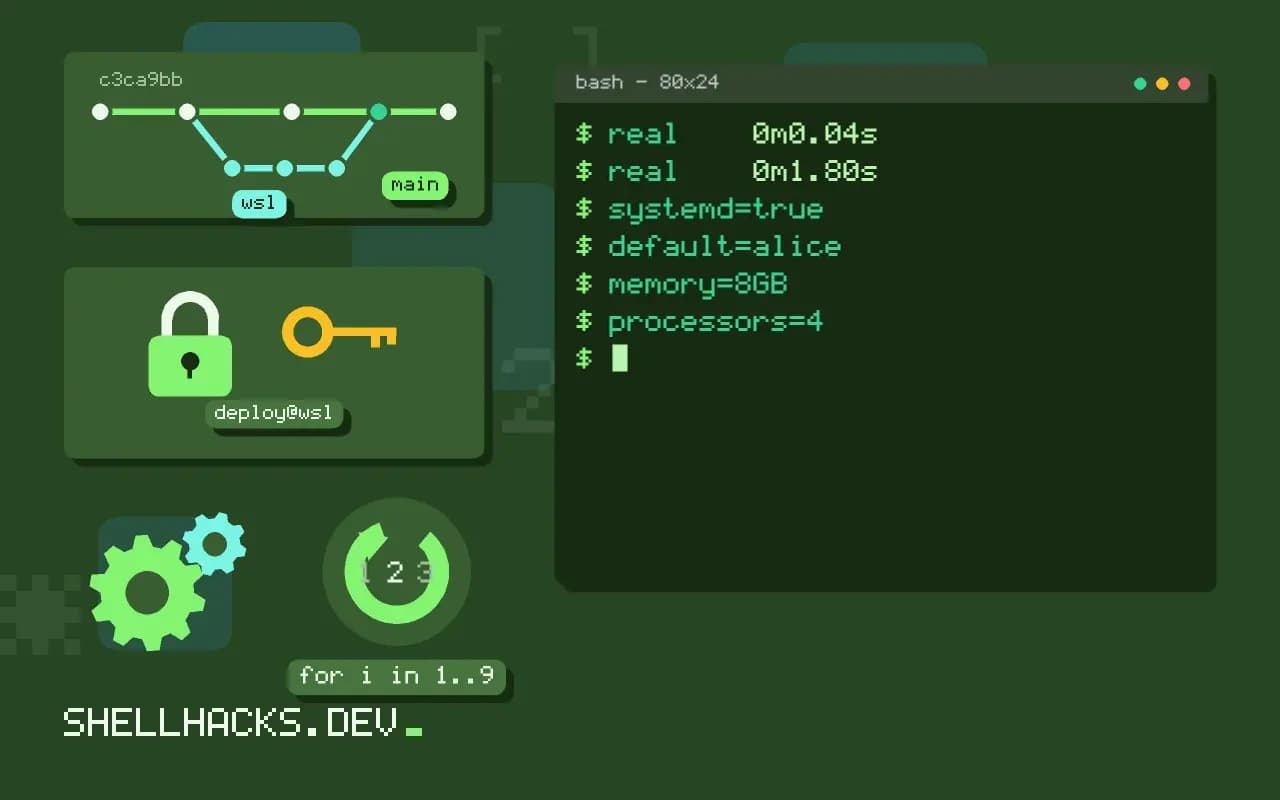
cd /mnt/c/Users/alice/projects/app && time git statusreal 0m0.04s
real 0m1.80s
The times are representative of the gap: file access across the boundary between Linux and Windows goes through a network-like protocol and is often ten to fifty times slower for many small files, which is what Git, npm install and builds do. Permissions also behave differently on /mnt/c, as in SSH key permissions on WSL. Put code in ~/projects. Reach it from Windows Explorer at \\wsl$\Ubuntu\home\alice or by running explorer.exe . inside the folder.
Configure the distribution
[boot]
systemd=true

[user]
default=alice

[interop]
appendWindowsPath=false[wsl2]
memory=8GB
processors=4
swap=2GBThe first file is /etc/wsl.conf inside Linux: systemd=true allows services and timers, and appendWindowsPath=false keeps the Windows PATH out of Linux, which speeds up command lookup and avoids running Windows programs by accident. The second is %UserProfile%\.wslconfig on Windows; it caps the VM's memory so it does not take most of your RAM. Apply changes with wsl --shutdown and reopen. Without a memory cap, the vmmem process can grow large during builds.
Tools: Git, SSH, editor
sudo apt update && sudo apt install -y git build-essential curl unzip
git config --global core.autocrlf input
ssh-keygen -t ed25519 -C "alice@wsl"
code .
explorer.exe .
Set core.autocrlf input so Git does not add Windows line endings to files that shell scripts then choke on, see line ending bugs. Create the SSH key inside Linux, with correct permissions. Running code . opens Visual Studio Code on Windows with the WSL extension attached to the Linux folder, so the editor feels native and tools run in Linux. Windows Terminal profiles let you choose fonts, colour schemes and a starting directory; for font choices see Nerd Fonts in the terminal.
Networking and Docker
curl http://localhost:3000
ip addr show eth0 | grep inet
docker --version
WSL forwards ports so a server listening in Linux is reachable from Windows at localhost. In "mirrored" networking mode (set in .wslconfig with networkingMode=mirrored), the Linux side shares the host's network more directly, which helps with VPNs. Docker works through Docker Desktop's WSL integration or by installing Docker Engine in the distribution; do not run both against the same distribution without understanding which daemon you are talking to.
What WSL 2 really is
WSL 2 is a lightweight virtual machine running a Microsoft-built Linux kernel, with a distribution's user space on a virtual disk file. Windows starts it on demand and integrates it with the host: shared clipboard, forwarded ports, access to Windows programs from Linux and Linux files from Windows through a network-style path. Understanding that it is a real VM with its own file system clarifies most of the trade-offs. It has real Linux behaviour, including permissions, symbolic links and case-sensitive names, and it has a boundary with Windows that costs performance and sometimes correctness when crossed.
The disk image grows as you use it and does not shrink by itself when you delete files. After removing large amounts of data, compact the virtual disk from Windows with the optimise tooling, or the image will keep occupying the space on the Windows drive. Check its size from time to time, because a development environment with container images and build caches can reach tens of gigabytes without anyone noticing.
Making the Linux and Windows halves cooperate
Use Windows for the interface and Linux for the work. A Windows editor with remote support opens a folder in the Linux file system and runs language servers inside Linux. The browser, the design tools and the office programs stay on Windows. When you need a file on both sides, copy it deliberately and not by working in the shared mount. Calling Windows executables from Linux works, for instance explorer.exe . to open the current folder, and so does calling Linux commands from PowerShell with wsl command, which makes small bridges between the two easy to write.
Line endings and file modes are the places where the halves disagree. Scripts saved with Windows line endings fail in Linux with an unhelpful error about the interpreter, and executable bits do not survive on the mounted Windows drives. Configure the editor to save shell scripts with Unix endings, and keep executable files in the Linux file system.
Resource limits and behaviour
By default the VM may use a large share of the host's memory and give it back slowly. Set explicit limits in the configuration file on the Windows side, and restart the subsystem for them to apply. Tools such as Docker and language servers in the VM can consume several gigabytes, and a machine with limited memory becomes sluggish if the limit is left unset. Recent versions can return unused memory to Windows automatically; check the current documentation for the setting, since it has changed across releases.
Networking has two modes worth knowing. In the default mode, Linux sits behind a virtual network address translator with its own address, and Windows reaches it through forwarded ports on localhost. Mirrored mode shares the host's interfaces, which simplifies reaching Windows services from Linux and handling VPNs. VPN software is a frequent source of trouble in either mode, with DNS the usual casualty, so keep a note of the workaround that works for yours.
Backups and portability
Export the distribution before risky changes with wsl --export, which writes the whole file system to a tar file, and restore it on another machine with wsl --import. This is the quickest way to clone a configured environment or to recover from a mistake. Keep project code in Git and dotfiles in a repository, so the exported image is a convenience and not the only copy of your work. A setup script that installs your tools from scratch is worth keeping beside it, since it documents what the environment contains and rebuilds it in minutes.
Where this does not apply
WSL is not a server platform: it stops when idle, depends on the Windows session and has no guarantee of uptime, so use real Linux for anything that must stay up. GPU and USB access need extra setup. Corporate policies may restrict virtualization. Some tools behave differently under WSL than on bare Linux (inotify across /mnt, systemd edge cases). See Microsoft's WSL documentation and the Windows Terminal documentation.