How to Use scp and sftp to Transfer Files With Real Output
Use scp and sftp to copy files over SSH, with ports, keys and recursive copies, learn how scp changed in OpenSSH 9, and when to use rsync instead.
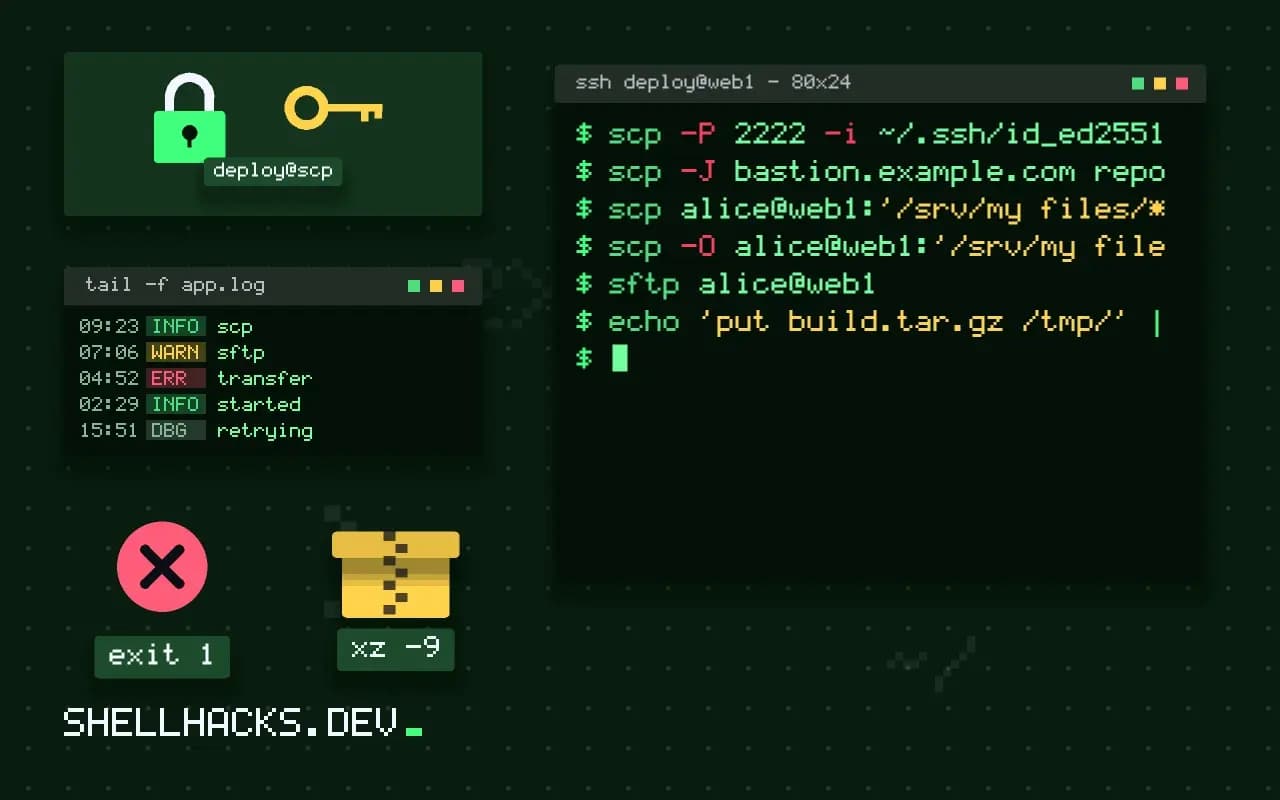
When a file must reach a server and the only thing guaranteed to be there is SSH, scp and sftp are the tools. They reuse your SSH keys, host checks and config, so no extra service is needed. The examples use OpenSSH 9.7; the choice between these tools and rsync is discussed in scp versus rsync versus sftp, and the basic rsync use is in the rsync guide.
Copy with scp
scp report.pdf alice@web1:/home/alice/
scp -r build/ alice@web1:/var/www/site/
scp alice@web1:/var/log/app/error.log ./
scp -P 2222 -i ~/.ssh/id_ed25519 data.csv alice@web1:/tmp/
The remote side is written user@host:path, and a relative remote path starts in the user's home directory. -r copies directories recursively, and does not follow the rsync trailing-slash rule: build/ and build both create site/build on the remote side if site exists. The port flag is a capital -P; lowercase -p in scp means preserve times and modes. Settings you repeat belong in your SSH config.
Through a jump host
scp -J bastion.example.com report.pdf [email protected]:/tmp/-J routes the connection through a bastion host, using OpenSSH's ProxyJump. The copy still goes directly end to end in the encrypted channel, and the bastion only forwards bytes.
What OpenSSH 9 changed
scp alice@web1:'/srv/my files/*.txt' ./
scp -O alice@web1:'/srv/my files/*.txt' ./     # legacy protocol
Before OpenSSH 9.0, scp ran a remote shell to interpret the command, so remote globs and spaces were expanded there and quoting needed two layers. Since 9.0, scp uses the SFTP protocol by default and handles names literally, with globs expanded by the remote SFTP server, which fixed a family of injection problems. Old scripts that quoted for the double expansion can break, and -O restores the legacy protocol. The motivation is described in the OpenSSH 9.0 release notes.
Interactive and batch sftp
sftp alice@web1
sftp> cd /var/www
sftp> put index.html
sftp> get -r logs
sftp> bye

echo 'put build.tar.gz /tmp/' | sftp -b - alice@web1
sftp gives a small shell with ls, cd, get, put, mkdir and rm; local commands take an l prefix, such as lcd. -b - reads commands from stdin for scripts, aborting on the first failure. It also works where a server allows only SFTP and no shell, which is how many managed hosts and chrooted accounts are configured.
How the transfers work underneath
Both commands start an SSH connection and run a subsystem inside it. sftp has always used the SFTP subsystem, a binary protocol with operations for opening, reading, writing and listing, which can resume and supports more than copying. Classic scp instead started a remote scp program through the user's shell and spoke the old rcp protocol over the channel, which is the reason for its quoting quirks and for a history of security flaws where a malicious server could write unexpected files into the client's directory. Since OpenSSH 9.0 the command uses SFTP underneath by default, so the syntax stays and the mechanism changes. Servers that offer only the old protocol, some network devices and minimal embedded systems, need -O.
The practical effect is that remote wildcards work differently. With the SFTP back end, the client expands a glob by asking the server for a directory listing, which handles spaces correctly and no longer evaluates shell syntax on the remote end. Scripts that relied on the remote shell expanding variables or command substitution in the path, for example scp host:'$HOME/file', can behave differently after an upgrade.
Permissions, times and ownership
By default a copy creates the destination with the mode of the source filtered by the remote umask, and sets the modification time to the time of the copy. Use -p to preserve modification times, access times and modes. Ownership is never preserved, since the file belongs to the remote user, and a deployment that needs a specific owner should copy as that user or run chown through ssh afterwards. Symbolic links are followed by scp when copying, so a link to a large directory copies the target, and sftp has its own behaviour per command. For exact trees with links and permissions, rsync or tar through ssh is the correct tool.
tar -C build -czf - . | ssh alice@web1 'tar -C /var/www/site -xzf -'The pipe streams a compressed tar, preserves modes and links, and creates no temporary archive on either side. It does not delete files that were removed locally, which is the job of rsync --delete.
Restricted accounts and chroot
Transfers are often offered to customers or partners, and an account that can only transfer files is safer than a full shell. In sshd_config, a Match User or Match Group block with ForceCommand internal-sftp and ChrootDirectory confines the account to one directory and removes shell access. The chroot directory and its parents must be owned by root and not writable by others, or the daemon refuses the login with an error that is not very descriptive; a writable subdirectory inside it holds the uploads. Pair this with key-only authentication, and consider limiting the keys with options such as restrict in authorized_keys.
Speed and troubleshooting
Throughput over a long-distance link is limited by the window sizes of the SSH channel, and the default can leave a fast link idle. OpenSSH tunes this automatically in recent versions, and a transfer that stays slow is usually bound by encryption speed on a small CPU or by the path itself. Compare with iperf3 to see whether the network is the limit. If a transfer hangs at start, look at the shell startup files on the remote account: any output printed by .bashrc for non-interactive sessions confuses the old scp protocol, which was one more reason for the move to SFTP. Use -v to see which subsystem was started and where it stalls.
Choosing among scp, sftp and rsync
A short rule covers most choices. Use scp for a quick copy of a file or two where nothing needs to resume. Use sftp when browsing or when a batch of mixed operations is needed, including deletes and renames. Use rsync over SSH for directories that change, for large files, for anything repeated, and wherever a partial transfer must continue. Rsync compares size and time and sends only differences, so a nightly copy of a large tree after the first run moves a small fraction of the data. If the remote side has no rsync installed, the SFTP-based tools are the fallback, and the piped tar approach is the one that preserves the most metadata.
Where this does not apply
Neither command resumes a partial transfer well: sftp has reget and reput for it, and scp has nothing, so for large or flaky transfers rsync with --partial is the better tool. They copy whole files every time, with no delta, and scp does not preserve ACLs or extended attributes. The error "subsystem request failed" when using sftp points to a server without an SFTP subsystem, covered in SSH subsystem request failed. The command options are documented in scp(1) and sftp(1).