How to Use SSH Keys With a Password Manager and Agent
Use SSH keys with a password manager agent: keys stay in the vault, the agent signs with approval, and Git signing and forwarding limits are covered.
An SSH private key in ~/.ssh is a file that any program running as you can read, and a passphrase only helps if you chose a good one and the agent has not cached it. Password managers have started to host the agent themselves: keys live in the vault, SSH talks to the manager's socket, and each use can need your approval. The setup is a few lines. This post covers it for 1Password, Bitwarden and KeePassXC, which behave alike. It relates to agent forwarding and generating keys. The commands assume OpenSSH 10.0.
How it works
The OpenSSH client, when it needs a signature, asks the agent named by SSH_AUTH_SOCK, or by the IdentityAgent option. A password manager implements the same protocol on its own socket. The agent lists the public keys it holds, SSH offers them to the server and the agent signs the challenge. The private key never leaves the manager. Because the manager is a normal application, it can also ask for confirmation, show which process asked and refuse when locked.
Configure SSH
Host *
    IdentityAgent ~/.1password/agent.sock
    IdentitiesOnly yes

Host github.com
    IdentityFile ~/.ssh/github.pub
SSH_AUTH_SOCK=~/.1password/agent.sock ssh-add -l
ssh -T [email protected]256 SHA256:3f2a1c9d8b7e6a5f4c3b2a1908f7e6d5c4b3a2918 GitHub key (ED25519)
Hi ada! You've successfully authenticated, but GitHub does not provide shell access.
The socket path depends on the product and the platform. On Linux, 1Password uses ~/.1password/agent.sock; on macOS the path is under ~/Library/Group Containers/; Bitwarden and KeePassXC document their own paths. Enable the SSH agent in the application's settings first. IdentityFile pointing to a .pub file tells SSH to offer only that key to that host, which avoids the too-many-authentication-failures problem when the vault holds many keys; IdentitiesOnly yes enforces it. The public key can be exported from the manager.
Without a manager: the system agent
Host *
    AddKeysToAgent yes
    UseKeychain yes
    IdentityFile ~/.ssh/id_ed25519
If you stay with key files, AddKeysToAgent yes loads the key into the running agent after the first use, and on macOS UseKeychain yes stores the passphrase in the system keychain so you are not asked again. That is the baseline: the key exists as a file, protected by a passphrase. The password manager approach removes the file. Compare, then decide.
Sign Git commits with the same key
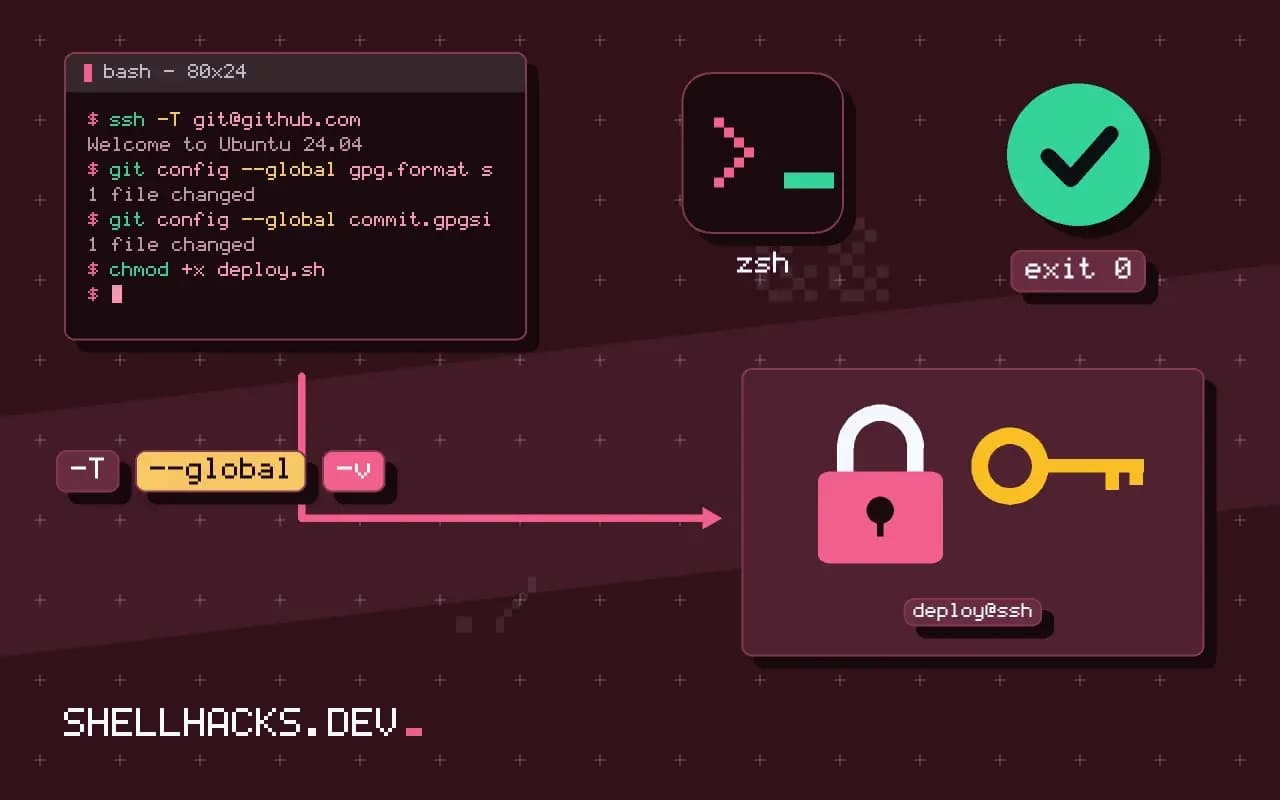
git config --global gpg.format ssh
git config --global user.signingkey "key::ssh-ed25519 AAAAC3Nza... ada"
git config --global commit.gpgsign true
git config --global gpg.ssh.allowedSignersFile ~/.config/git/allowed_signers
Git can sign commits with an SSH key since 2.34, which means one key can authenticate and sign. With key:: and the public key text, Git asks the running agent to sign. Add the public key to the allowed signers file to verify signatures locally with git log --show-signature, and to the forge as a signing key.
Agent forwarding and limits
Forwarding the agent (ForwardAgent yes) to a remote host lets that host ask your local agent to sign, so a compromised server can use your keys while you are connected. Prefer ProxyJump to reach internal hosts, as in jump hosts, and if you must forward, use an agent that prompts on each use. A manager's prompts make the use visible, which is a benefit.
Where this does not apply
Servers, CI and cron jobs cannot approve prompts or open a vault; they need their own restricted keys, as in deploying from CI. A locked or crashed manager means no SSH until it is back, so keep a recovery path: a second key on a hardware token, as in hardware keys with SSH, and an emergency way into servers. A shared vault means shared key access, so decide who is allowed to use which key.
What the agent does and why it matters for key safety
An SSH agent is a background process that holds your private keys in memory and signs challenges on behalf of the client, so the client never reads the key file. That lets you type a passphrase once and use the key many times, and it can also keep the key out of the file system entirely. A password manager that acts as the agent goes further: the key lives in the manager's encrypted vault, the manager prompts for approval, often with a fingerprint or master password, when something asks to use it, and the key can be synced between machines with the same protections as your other secrets. The benefits are real. No private key file sits in your home directory to be copied by malware or backed up by accident, and each use is visible and can be denied. The cost is dependence on the manager: if it is locked, offline or broken, you cannot connect, so keep a recovery path, such as a separate emergency key stored offline.
Not every manager does this, and the details differ. Check that yours supports an SSH agent, and read how it asks for approval, how long an approval lasts and which keys it offers to a connecting program.
Connecting the client to the manager's socket
The client finds the agent through a socket whose path is in the SSH_AUTH_SOCK environment variable, or through the IdentityAgent option in ~/.ssh/config. A manager's agent listens on its own socket, and you point the client at it, either for all hosts with Host * and an IdentityAgent line or for particular ones. The path differs by system and manager, so use the one in the manager's documentation. Verify with ssh-add -L, which lists the public keys the agent offers, and with ssh -v host, which shows which keys were tried. Offering too many keys makes a server cut the connection after its authentication attempt limit, so pair the agent with IdentitiesOnly yes and, per host, an IdentityFile that names the public key you want used, so the client offers only that one. The public key file can be kept on disk, since it is not secret, and the client uses it to select the matching key in the agent.
The system agent, signing commits and forwarding
Without a manager, the standard ssh-agent works well. Start it with your session, add keys with ssh-add, and set AddKeysToAgent yes so the client adds a key after first use. A lifetime with ssh-add -t 3600 removes the key after an hour, and -c asks for confirmation on each use, which limits what malware running as you can do with the agent. On macOS, UseKeychain yes stores the passphrase in the system keychain. Git can sign commits with an SSH key, since version 2.34: set gpg.format to ssh, user.signingkey to the public key, and gpg.ssh.allowedSignersFile to a file listing trusted keys, and the same agent signs your commits. Be careful with agent forwarding, the -A option: a remote host you connect to can then use your agent for as long as you are connected, and anyone with root on that host can use your keys. Prefer a jump host with ProxyJump, which needs no forwarding.
See 1Password SSH agent documentation and IdentityAgent in ssh_config(5).